Error “Let’s try something else. Another sign-in method is required to access this resource”
 Issue
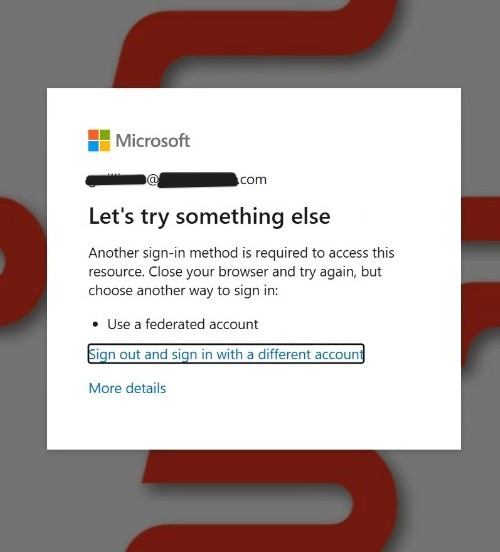
IssueUnable to access Microsoft resources (Office products, Outlook email, Edge, SharePoint, OneDrive.). The below error message occurs:
Resolution
Log out of "Work or School Account" on the computer.
- Access Settings on your PC
- Choose "Accounts"
- Choose "Access work or school"
- Choose the "Work or school account" associated to your email address.
- Click on the "Disconnect" button and allow the machine to disconnect.
Clear entries from Credential Manager
- Access Credential Manager on your PC by going to the search bar and typing "Credential Manager". Click "Open" to open the program.
- First go to the "Web Credentials" tab
- For EACH entry indicating "Microsoft", click the drop down arrow. Then click "Remove".
- Repeat the above step for ALL Microsoft entries under Web Credentials.
- Choose the Windows Credentials tab
- For each of the following items ONLY, choose select the drop down arrow and choose Remove. Some items may not appear. DO NOT remove anything related to 1Password or Adobe.
Log out of Microsoft desktop programs
- Open any Office program such as Word or Excel.
- In the upper right corner your name or photo should appear. Click on it and then choose "Sign Out"
- Close all Microsoft programs including Edge, Outlook, and Teams and OneDrive.
- Re-open a Microsoft program such as Outlook or OneDrive. You should be prompted to sign in. Below is an example from OneDrive.
- You should get a screen similar to the below.
- IMPORTANT: Click "Use your password instead".
- You should be presented with the familiar login screen as shown below. Login using your normal password and multi-factor method.
- You should be presented with the following screen. Make sure "Allow my organization to manage my device" is checked and choose "Yes, all apps".

You may need to repeat this process for other programs that you signed out of during steps 2 or 3.