Adding Additional SharePoint Sites to OneDrive

IT has configured your profile to automatically sync your department's SharePoint libraries to your OneDrive. Sometimes, you might be trying to sync a library from a different department, that you have permissions to access. If you notice the site isn't appearing in File Explorer, you can create a link to it so that it appears in your OneDrive and in File Explorer.
What you'll need:
- An active internet connection
- Web access to the SharePoint library you want to sync
- If you get an error message when you try to access the library, confirm with the person who gave you permission that you are in "Manage Access" list
- If you are in the list and still having issues, please contact IT for assistance
Steps:
If you were just given a link to a specific folder within a SharePoint site, please click on that link and start at step 3
- Access the SharePoint site on the web
- On the left side look for “Documents”
- In the top row of icons there will be an icon with a diagonal arrow titled Add shortcut to OneDrive
- Click on it
- You may see an icon labeled Sync, DO NOT USE THIS
- We originally explained that you should, but Microsoft has updated their best practices to reflect this
- You should see the shortcut appear in your OneDrive (both online and File Explorer) at the top level
- Because it is a shortcut within OneDrive, it will show up next to the cloud icon labeled "<YourName> - Town of Plainfield"
- From here, you can move the shortcut anywhere within your OneDrive file system and it will still work
Troubleshooting:
Check to see if the shortcut shows up in OneDrive online
Syncing with the desktop isn't instant, but creating the shortcut immediately adds it to your OneDrive online page. Check there to see if it's showing up.
- If it is, give it some time before continuing with the next steps
- If not, try the above process again before contacting IT
Check your Internet Connection
A stable internet
connection is crucial for syncing.
Restart your computer
Sometimes a simple restart can
resolve syncing issues.
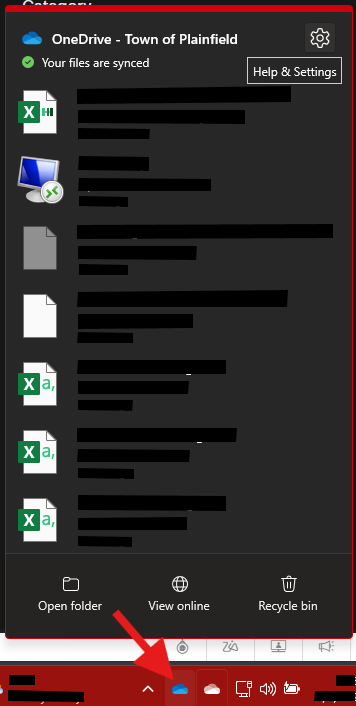
Be sure OneDrive is
running, logged in, and doesn’t display any errors
The icon should appear as a blue cloud. If it appears as anything else there
will be an accompanying error message that will show what the issue is and any
instructions you may need to follow.
Contact IT Support
If you continue to experience problems after trying these
steps, please submit an IT ticket.
Related Articles
Error “Let’s try something else. Another sign-in method is required to access this resource”
Issue Unable to access Microsoft resources (Office products, Outlook email, Edge, SharePoint, OneDrive.). The below error message occurs: Resolution Log out of "Work or School Account" on the computer. Access Settings on your PC Choose "Accounts" ...Disabling Autosave in Word or Excel
Disabling Autosave for an Individual File Open the document Launch Word or Excel and open the shared document you want to disable Autosave on Toggle the Autosave switch (upper left corner of the program) from "On" to "Off" Close and reopen Close the ...Creating and Using a Template in Office 365
A Template is a pre-formatted document that serves as a starting point for new documents. It can include specific formatting, layout, content, and styles. Office 365 programs that offer templates: Word, Excel, PowerPoint Why Create a Template? ...Password Reset
Forgotten Password If you DO NOT REMEMBER your password, please submit a ticket with IT and someone will create a temporary password. Once this is done, please return to this page for directions on how to reset your password. Password Change in ...Create Better Stream Videos with Trim and Interactivity