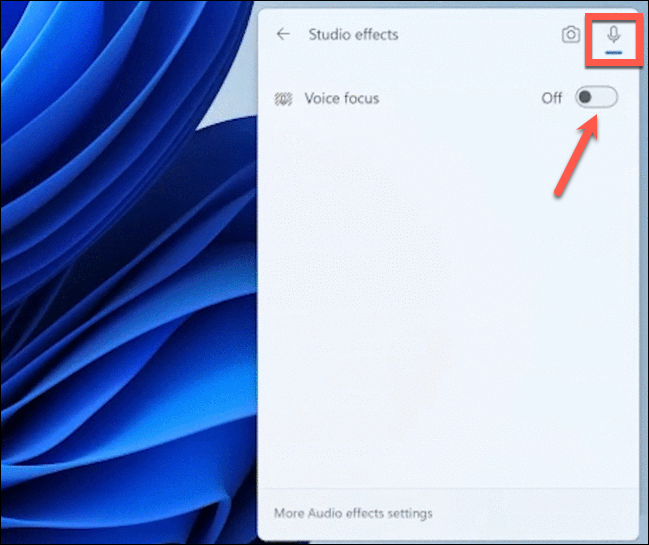
Windows Studio Effects in Windows 11

Original Article: How to Enable and Use Windows Studio Effects in Windows 11
What are Windows Studio Effects?
Windows Studio Effects are a collection of video and audio enhancements available in Windows 11 version 22H2 and later. These AI-powered effects aim to improve your experience during video calls and recordings. They are available on devices equipped with a Neural Processing Unit (NPU), such as the Surface Pro 9 5G model.
Background Blur
- The Background Blur effect keeps the focus on you by blurring your background during video calls. Unlike app-specific solutions that may produce inconsistent results, Windows Studio Effects provide a uniform blur across all applications
- You can choose between two levels: Standard Blur for a heavier blur and Portrait Blur for a lighter effect
Eye Contact
- The Eye Contact feature adjusts your gaze to simulate direct eye contact with the camera
- This effect compensates for the natural tendency to look at the screen rather than the camera during video calls, helping you appear more engaged and attentive to your audience
Auto Framing
- Auto Framing keeps you centered in the frame, even if you move around or if your camera is at an angle
- By using machine learning algorithms, it adjusts the cropping and zoom of your camera feed to ensure you remain prominently visible
Voice Focus
- Voice Focus is an audio effect that reduces background noise from your microphone
- Utilizing AI noise suppression, it ensures your voice remains clear and crisp, even in noisy environments
- This is especially useful during meetings where ambient sounds could distract other participants
How to Enable and Use Windows Studio Effects
If you have a compatible device running Windows 11 version 22H2 or later, you can easily enable and use Windows Studio Effects. The effects apply system-wide and remain active until you disable them.
Enabling Video Effects
- Open the Settings app by clicking the Start menu and selecting the gear icon, or press Windows + I on your keyboard.
- Navigate to the Bluetooth & devices section from the left-hand menu.
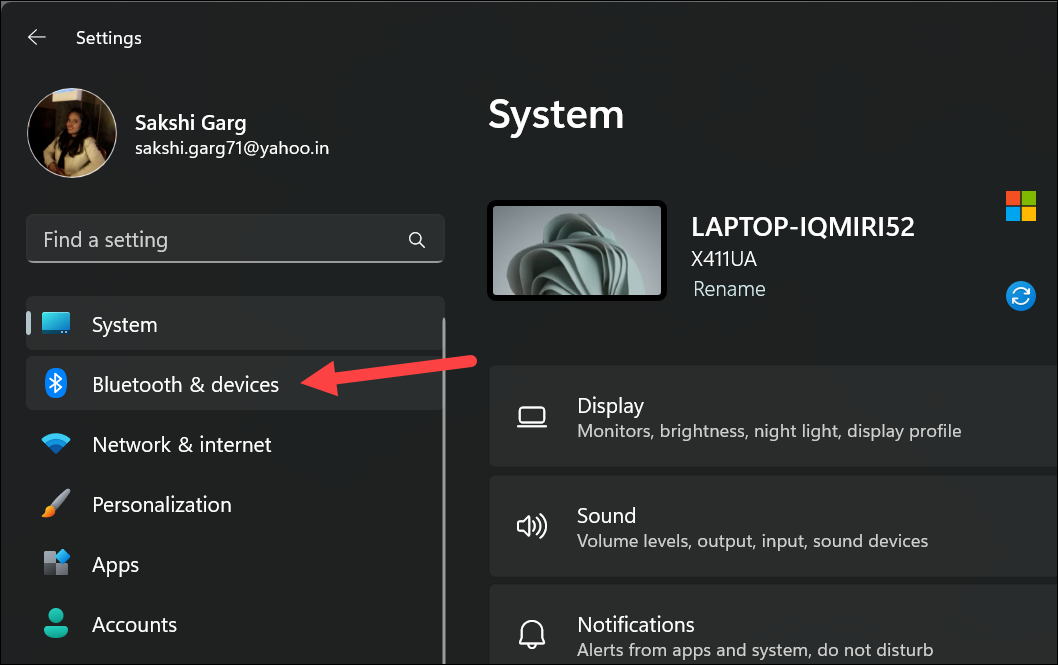
- Select Cameras from the list on the right.
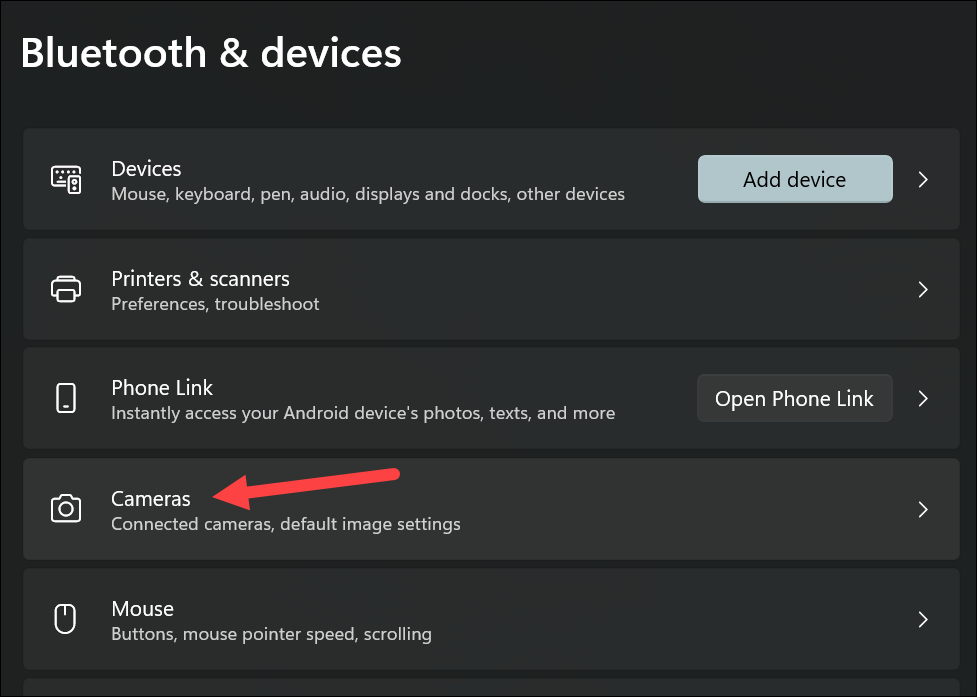
- Click on your camera device from the available list.
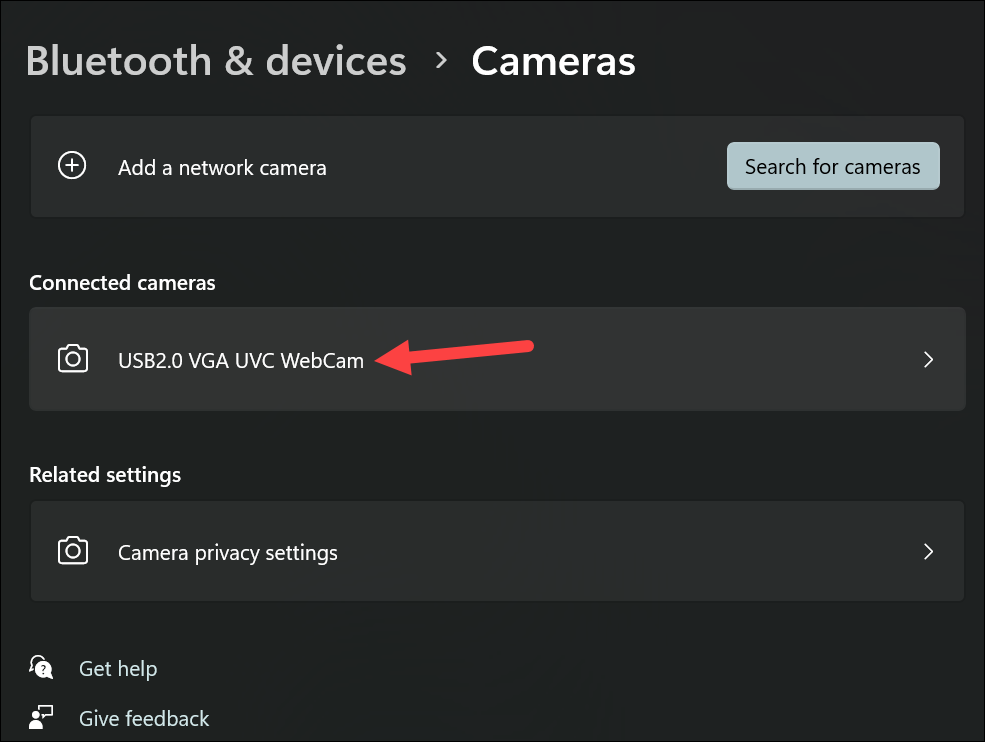
- Expand the Camera Effects section. You'll see options for Background effects, Eye Contact, and Automatic framing.
- Enable the toggles for the effects you want to use. For Background effects, select either Standard Blur or Portrait Blur.
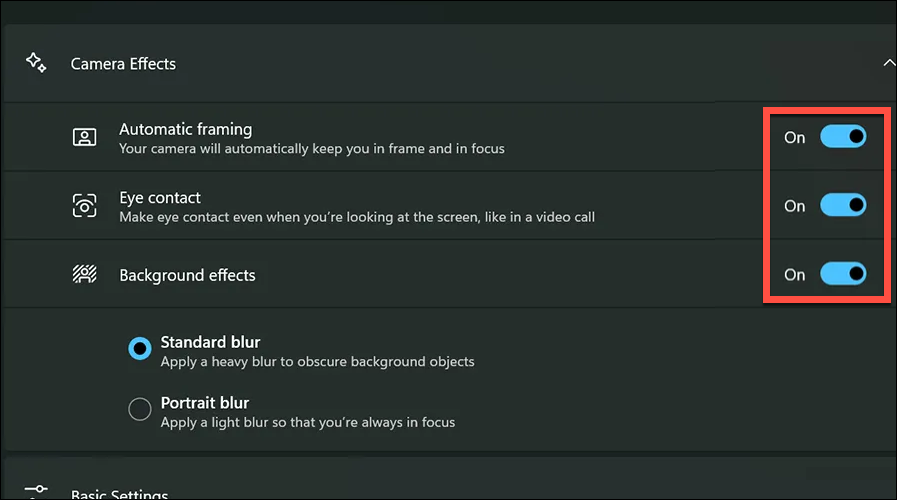

Note: Enabling camera effects might impact your device's performance and battery life, especially on some devices.
Enabling the Audio Effect
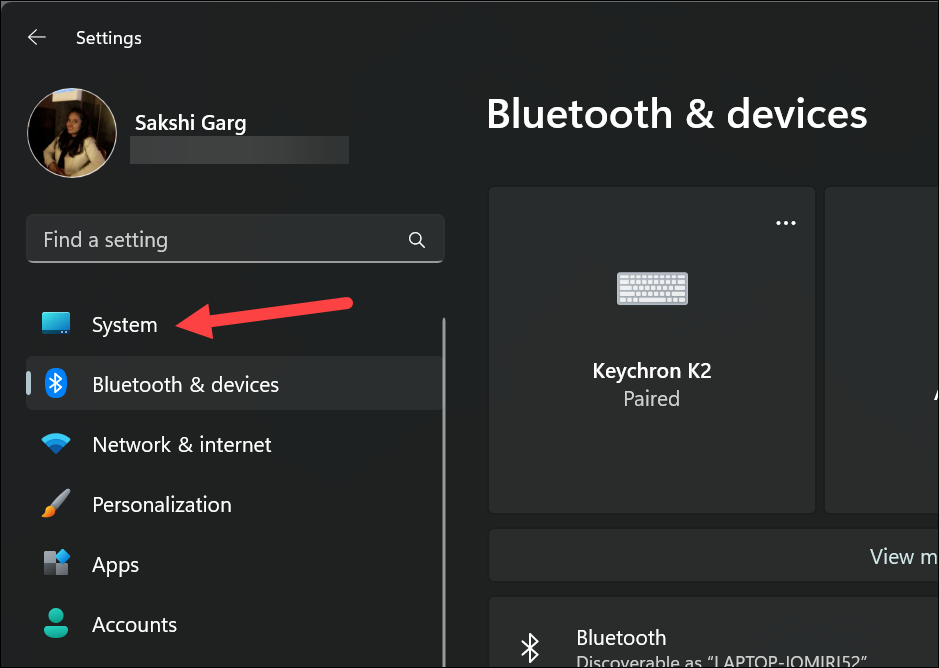
- In the Settings app, go to the System section from the left menu.
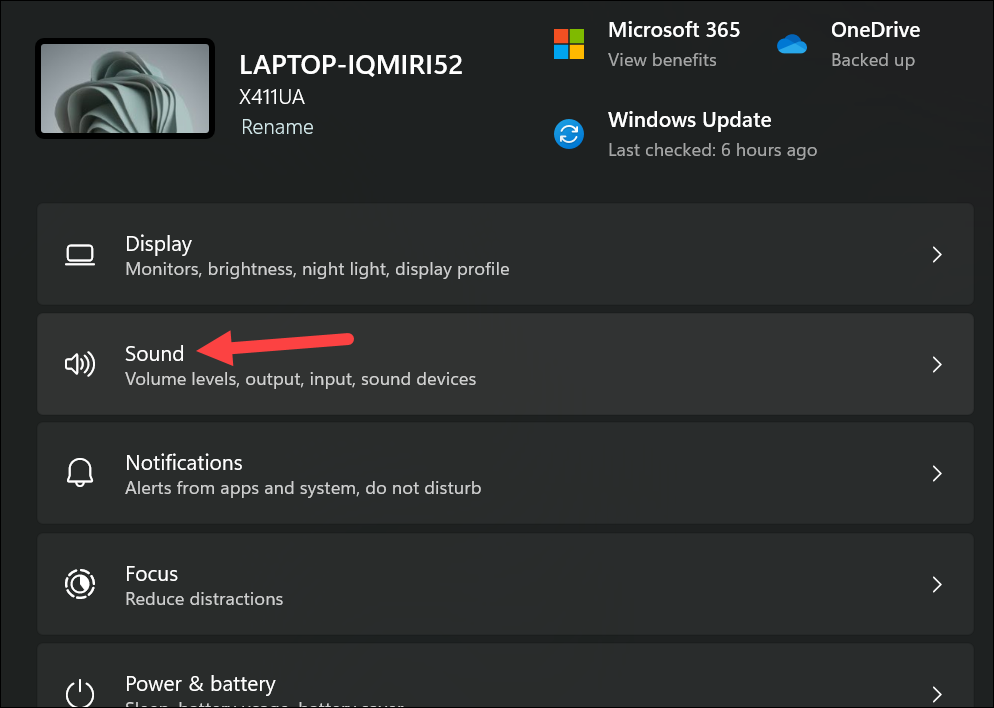
- Click on Sound in the right pane.
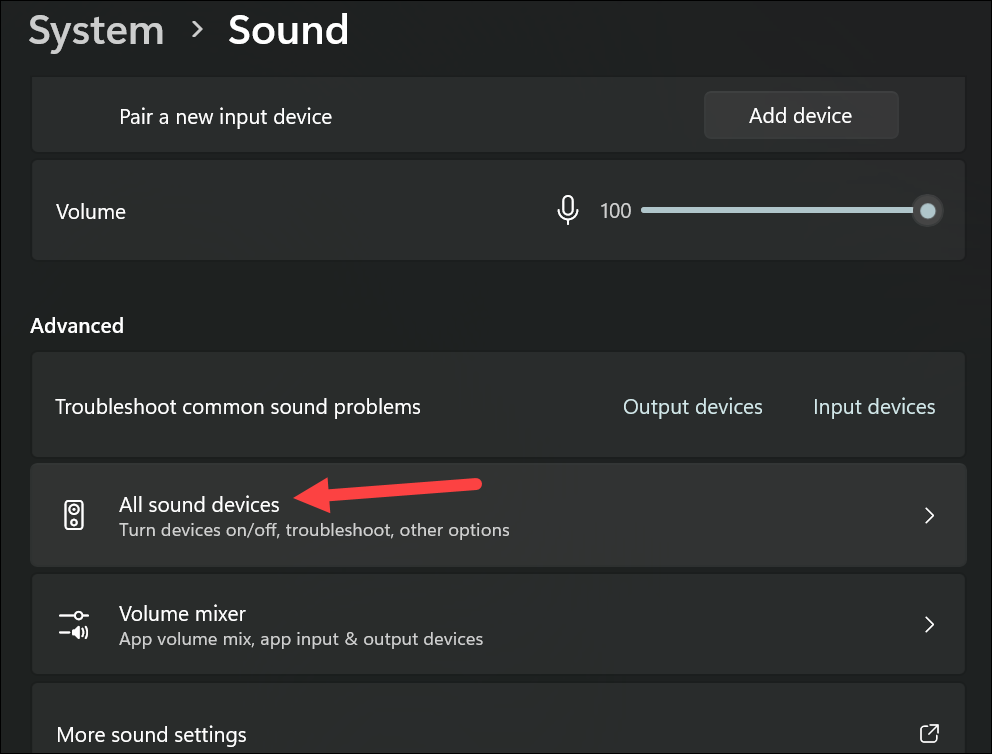
- Scroll down to the Advanced section and select All sound devices.
- Under Input devices, choose your internal microphone.
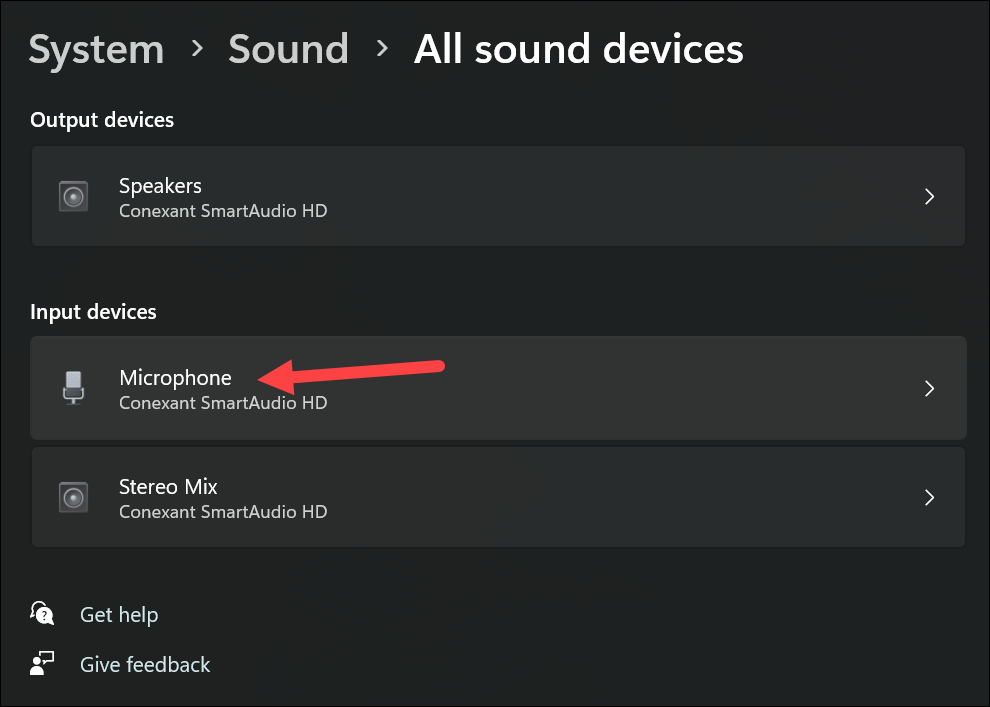
- Expand the Audio Enhancements section.
- Enable the toggle for Voice Focus to reduce background noise.
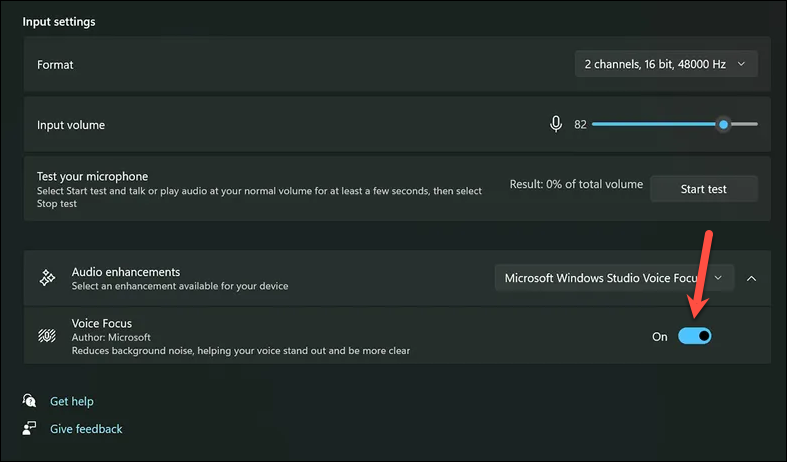
Enabling Studio Effects from the Quick Settings Panel
The Studio Effects action might need to be added if it isn't visible in quick settings. For more info, see Notifications and Do Not Disturb in Windows.
If the Studio Effects action still isn't available, the Windows device might not have an NPU.
- Click on the network, sound, and battery icons in the taskbar to open the Quick Settings panel.
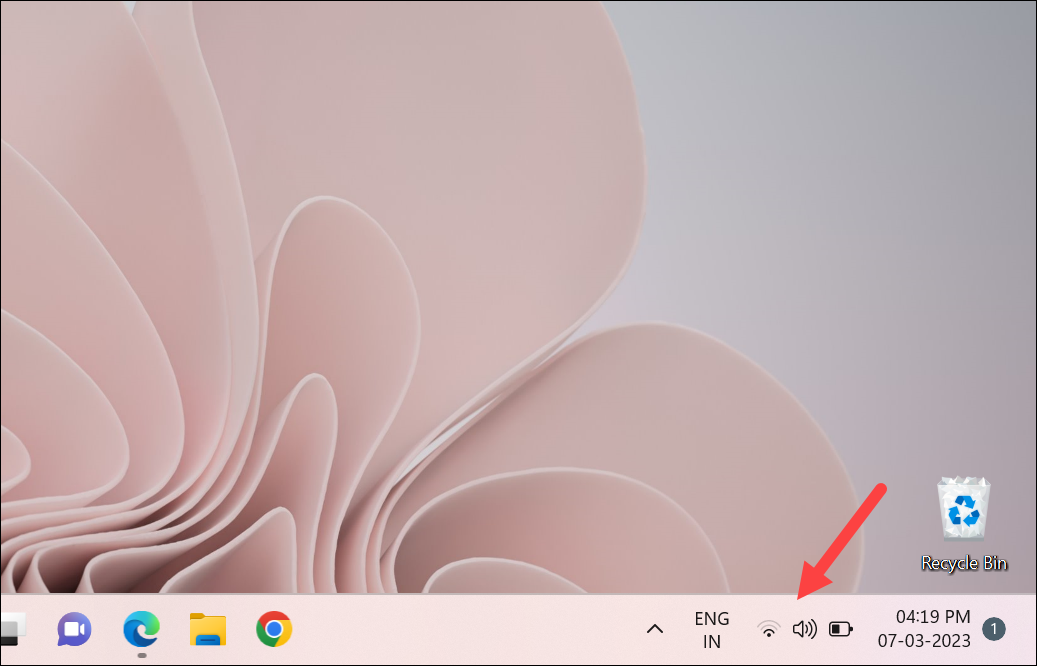
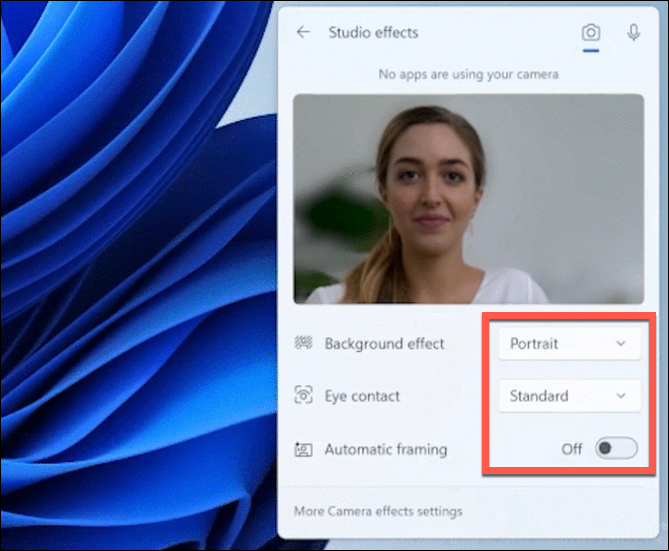
- Click on the Studio Effects tile.

- In the Studio Effects window, switch between Camera and Audio effects using the options at the top-right corner.
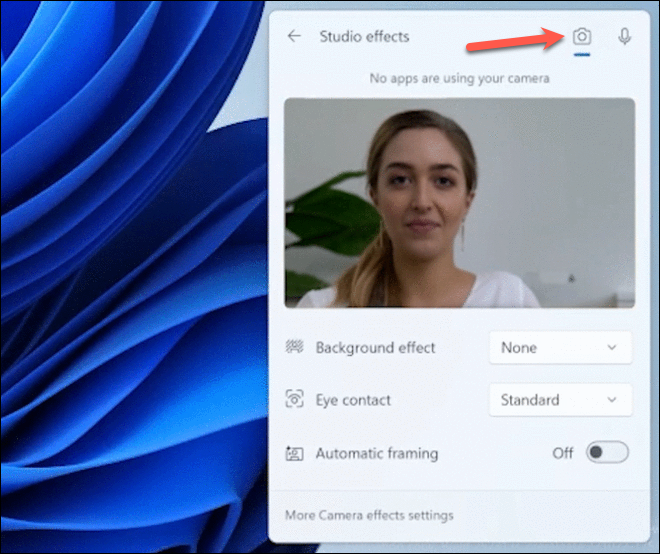
- Enable or disable the desired effects by toggling them on or off. For Background effects and Eye Contact, select your preferred option from the dropdown menu.
- To activate Voice Focus, switch to the Audio tab and enable the toggle.